Deploy a Django app with PostgreSQL for free, with VS Code in the browser
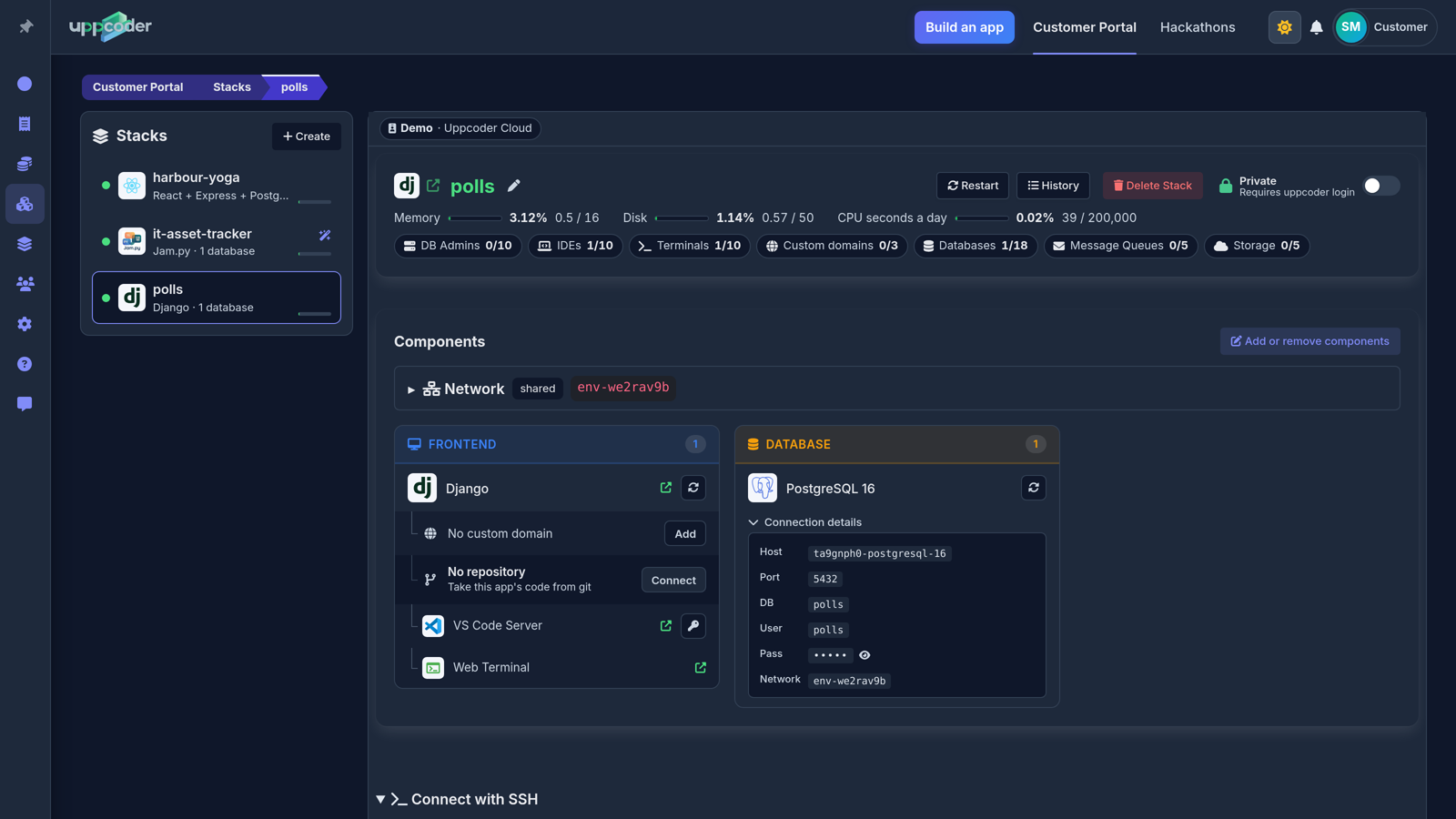
You have a Django project and you want it online: its own address, a real PostgreSQL database, and somewhere to keep working on it. This walks through doing that on Uppcoder on the free plan, start to finish, with the database connected and the admin login working from the start.
Every step below was run on a fresh app while writing this, and the screenshots are from that run.
What you get on the free plan
The free plan (Spark) gives you one app with one database: 2 GB of memory and 2 GB of disk, VS Code in the browser and a terminal in the same container, and an HTTPS address from the first minute. No card needed.
Update, 25 October 2026: the free plan has no time limit (if it is ever changed or ended, everyone on it is told by email at least 60 days before), and every app and database on Uppcoder, the free plan included, is backed up every night to a separate server.
1. Sign up and take the free plan
Sign up at portal.uppcoder.com and click the link in the confirmation email first: the free plan starts only once your address is confirmed. Then go to Billing → Available Plans → Spark → Start free.
2. Create the app: Django and PostgreSQL
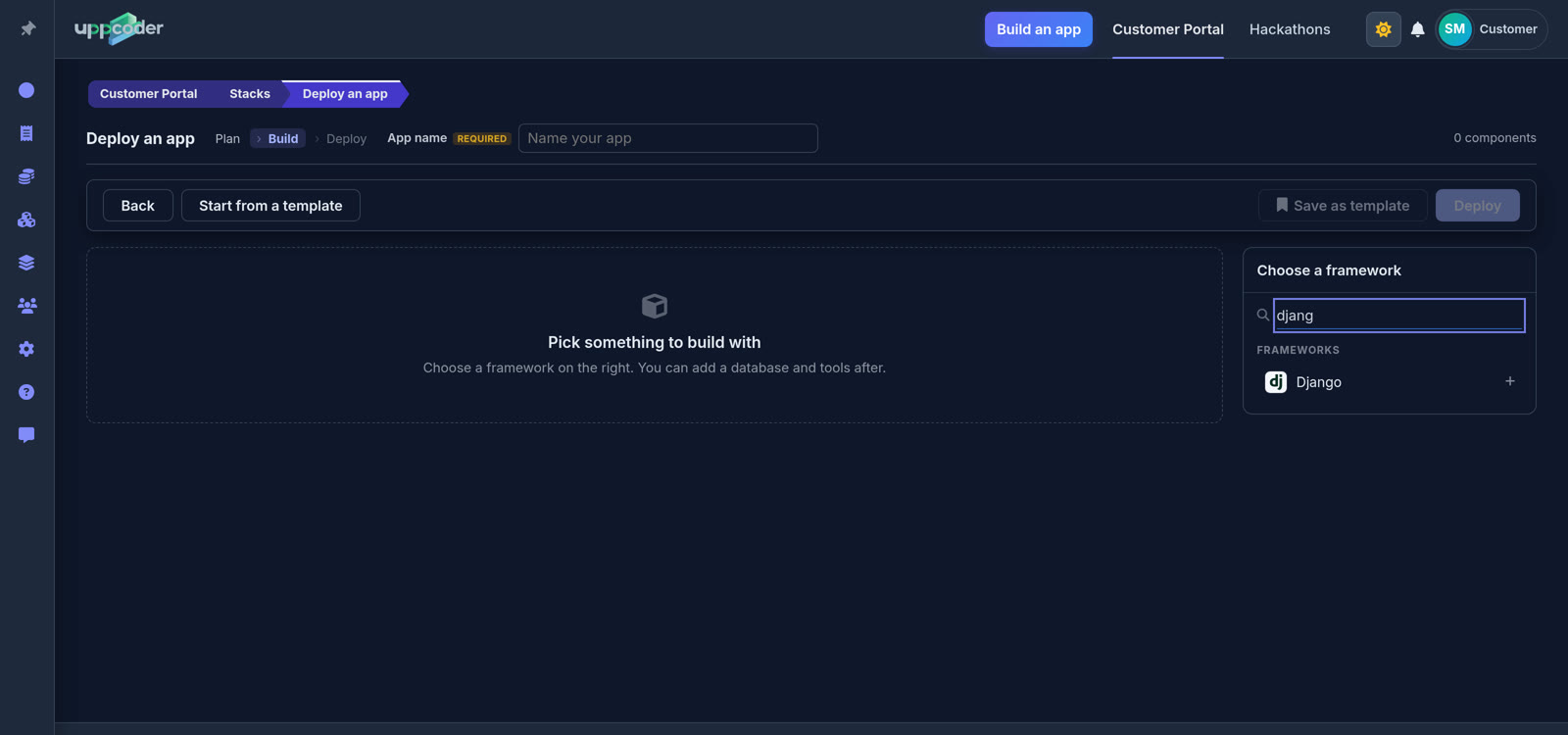
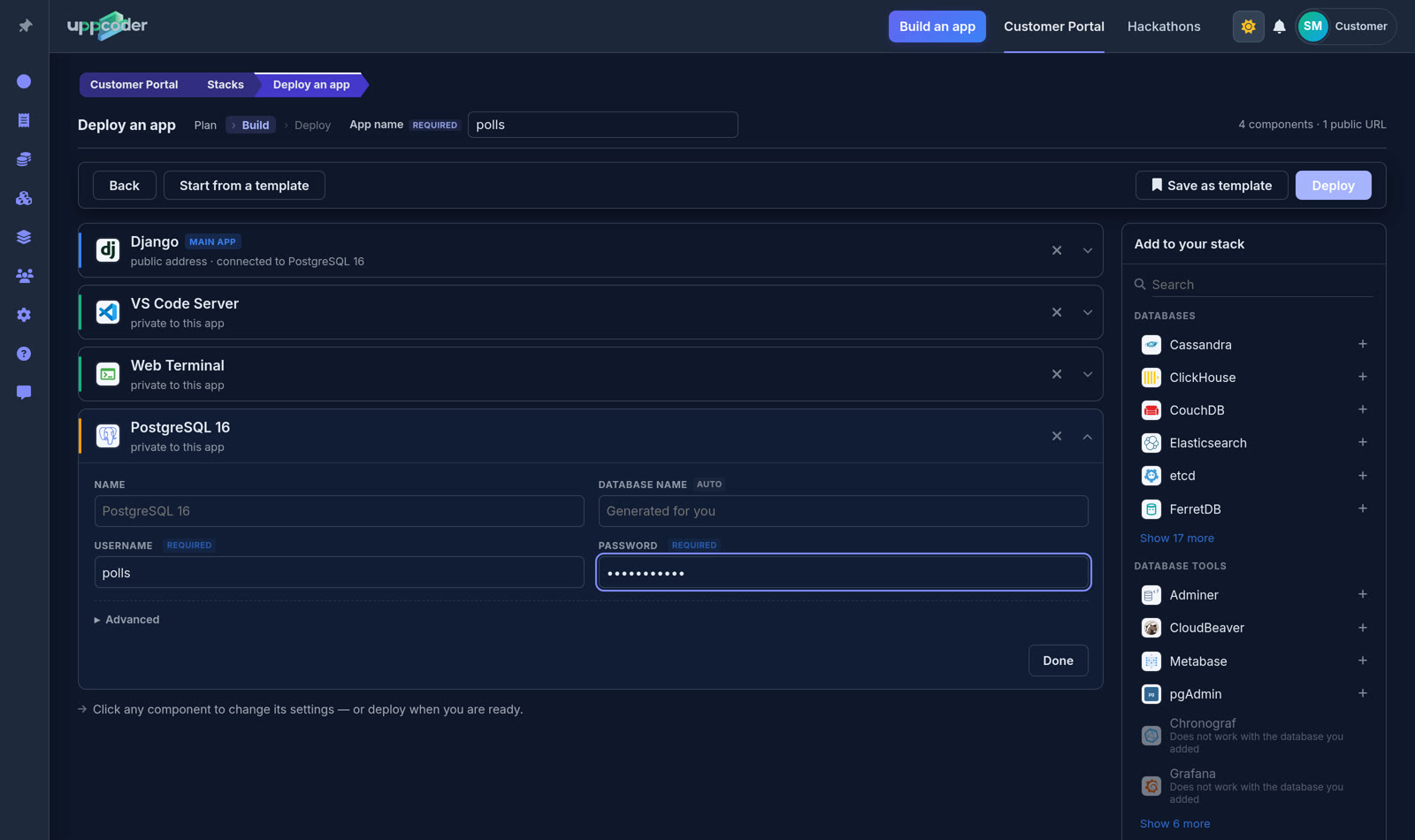
Stacks → + Create → Blank stack, then type "django" in the search box on the right and pick Django. Search again for PostgreSQL and add it: it is connected to your Django app automatically.
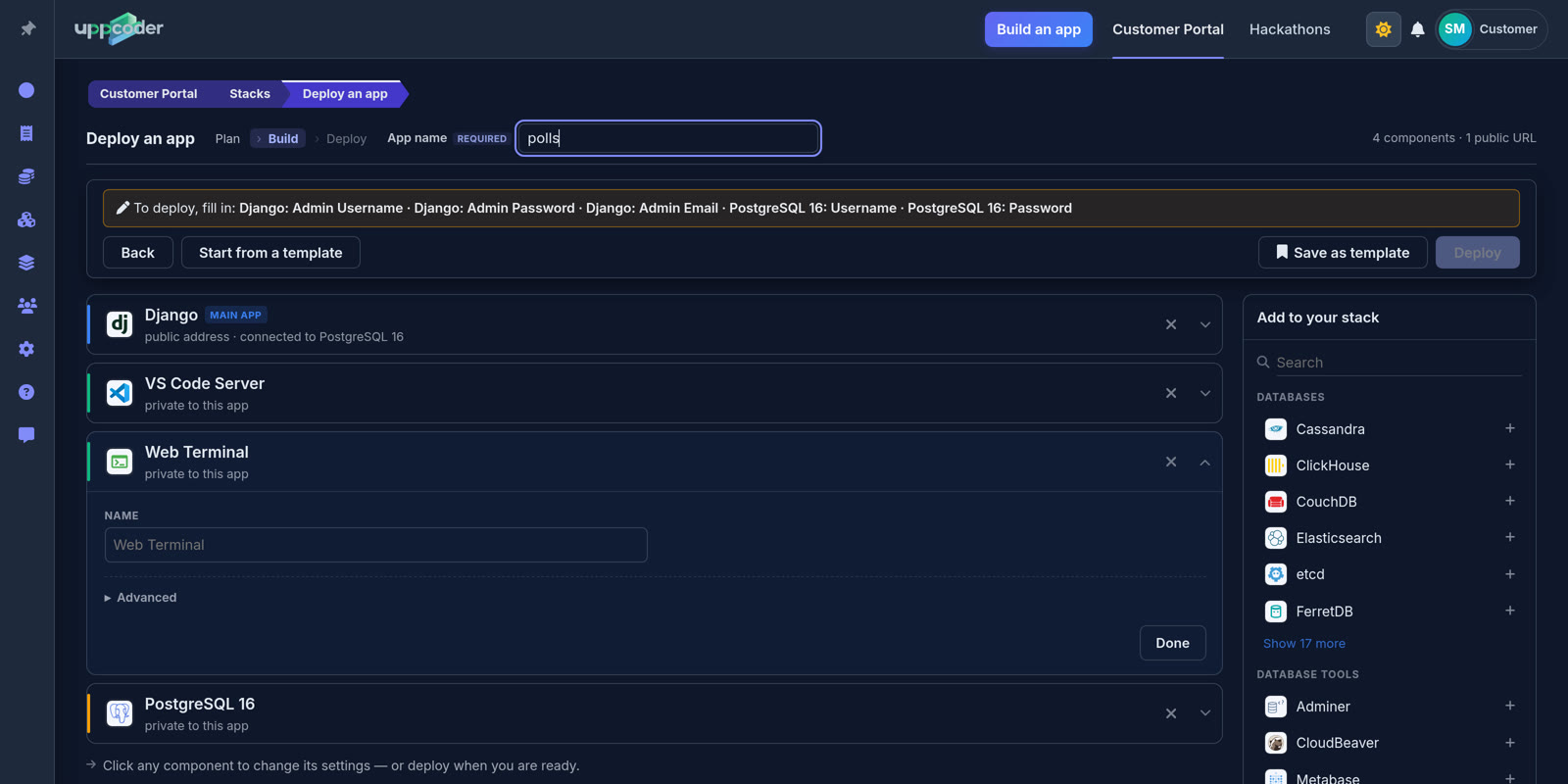
Give the app a name at the top (mine is polls). The yellow bar tells you what is still missing.
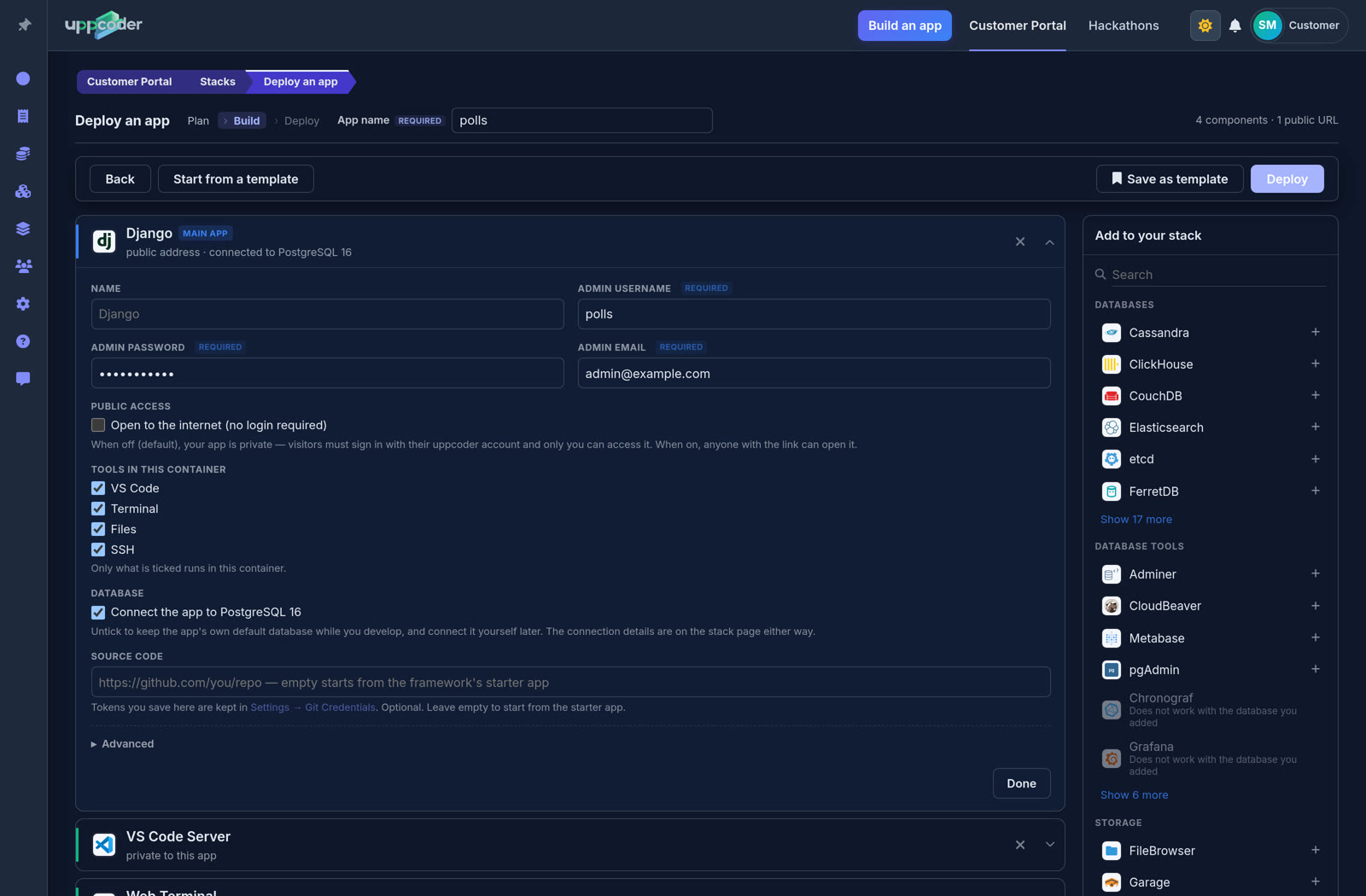
Click Django to fill in an admin username, password and email. VS Code, Terminal, Files and SSH are ticked by default: they run in the same container as your app. Leave Open to the internet off for now; the app is then private to you until you switch it on.
Under Database, leave Connect the app to PostgreSQL 16 ticked: Uppcoder then connects your app to the database for you (step 4). Untick it if you would rather develop on Django's default database first and connect it yourself later.
Click PostgreSQL 16 and give it a username and password. The database name is filled in for you.
3. Deploy
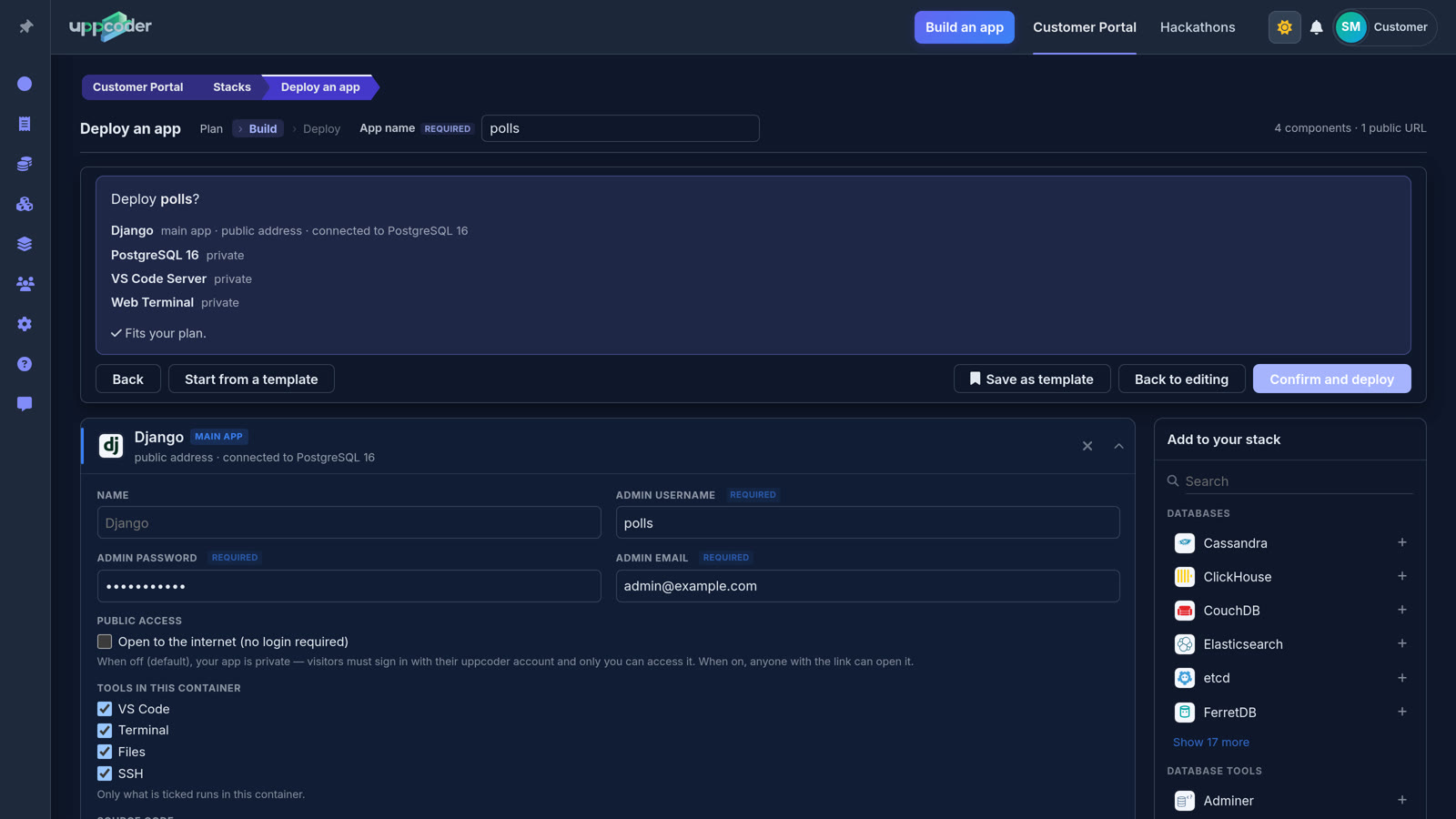
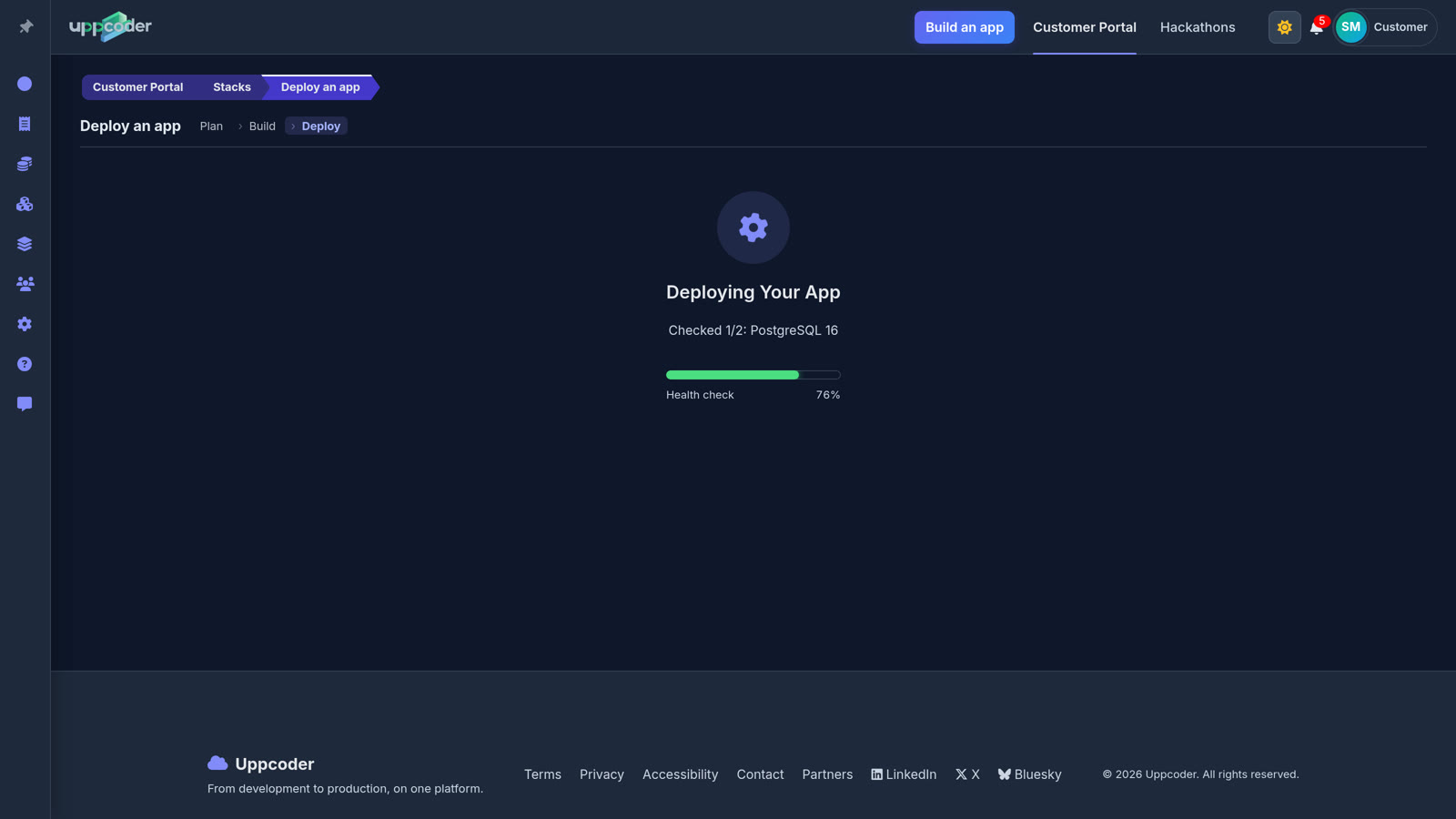
Press Deploy, check the summary, then Confirm and deploy. Mine was live in 33 seconds.
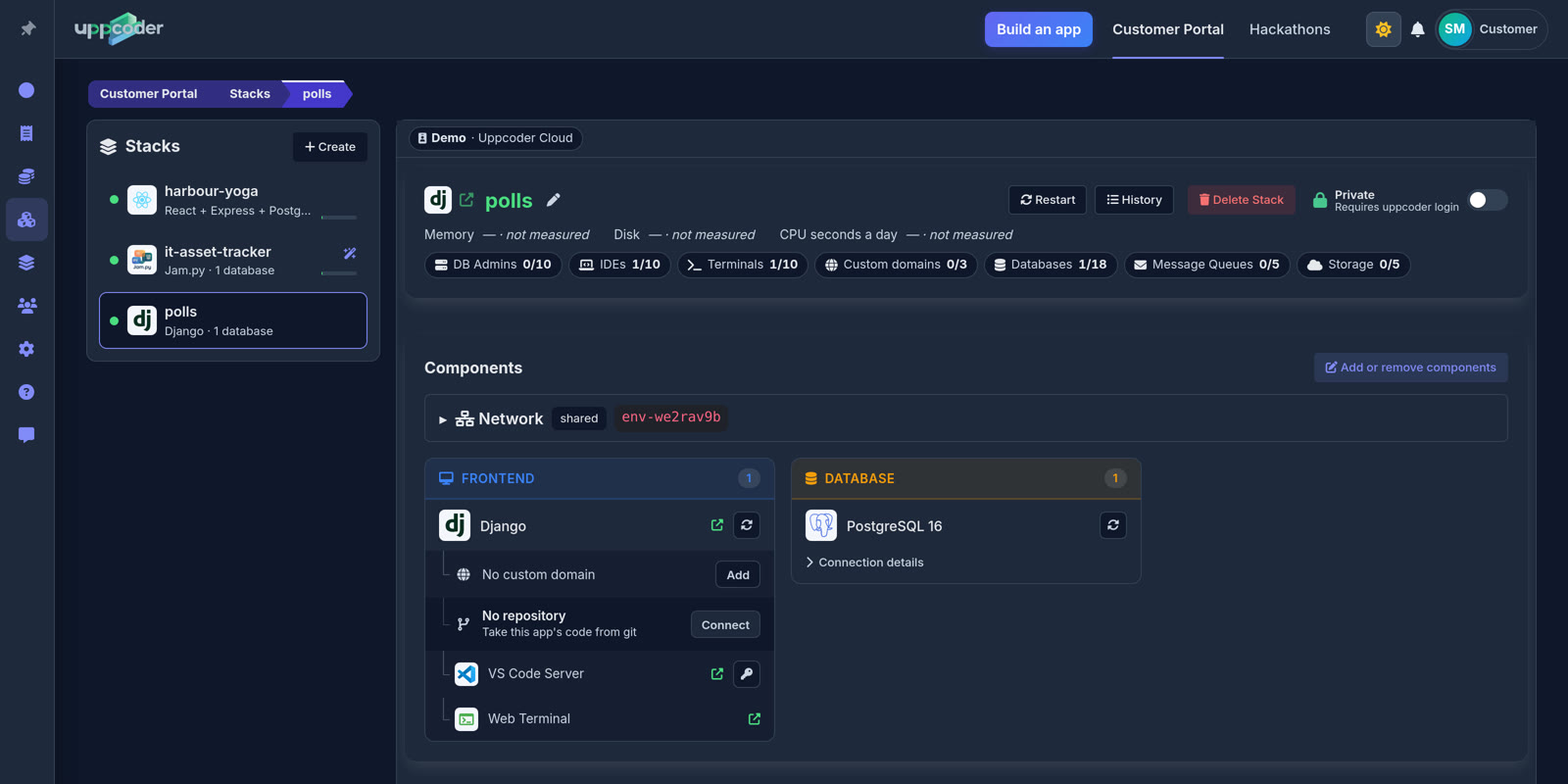
The stack page has everything in one place: the app's address (the arrow next to its name), VS Code, the Web Terminal, and the database.
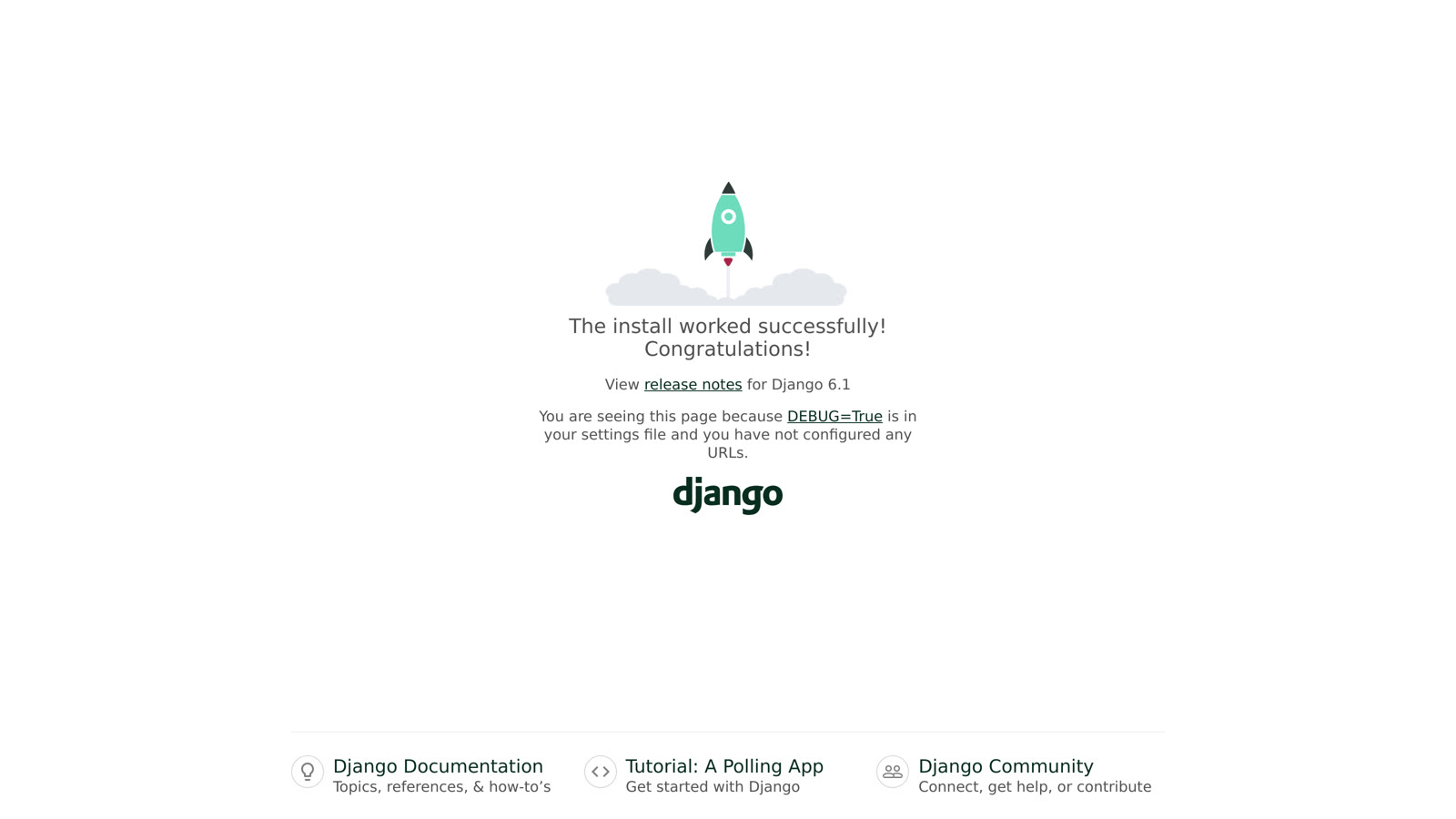
Open the address and you get Django's welcome page.
4. Your app is already on PostgreSQL
With Connect the app to PostgreSQL 16 ticked, Uppcoder finishes the setup about half a minute after the deploy: it installs the PostgreSQL driver (psycopg), points DATABASES in mysite/settings.py at the database, runs migrate, creates the admin user from the username and password you typed, and adds your app's own address to CSRF_TRUSTED_ORIGINS so Django's forms work behind HTTPS.
Open VS Code from the stack page and you will find this in mysite/settings.py:
DATABASES = {
    'default': {
        'ENGINE': 'django.db.backends.postgresql',
        'NAME': os.environ['POSTGRES_DB'],
        'USER': os.environ['POSTGRES_USER'],
        'PASSWORD': os.environ['POSTGRES_PASSWORD'],
        'HOST': os.environ['POSTGRES_HOST'],
        'PORT': os.environ.get('POSTGRES_PORT', '5432'),
    }
}

CSRF_TRUSTED_ORIGINS = [os.environ['UPPCODER_SELF_URL']] if os.environ.get('UPPCODER_SELF_URL') else []
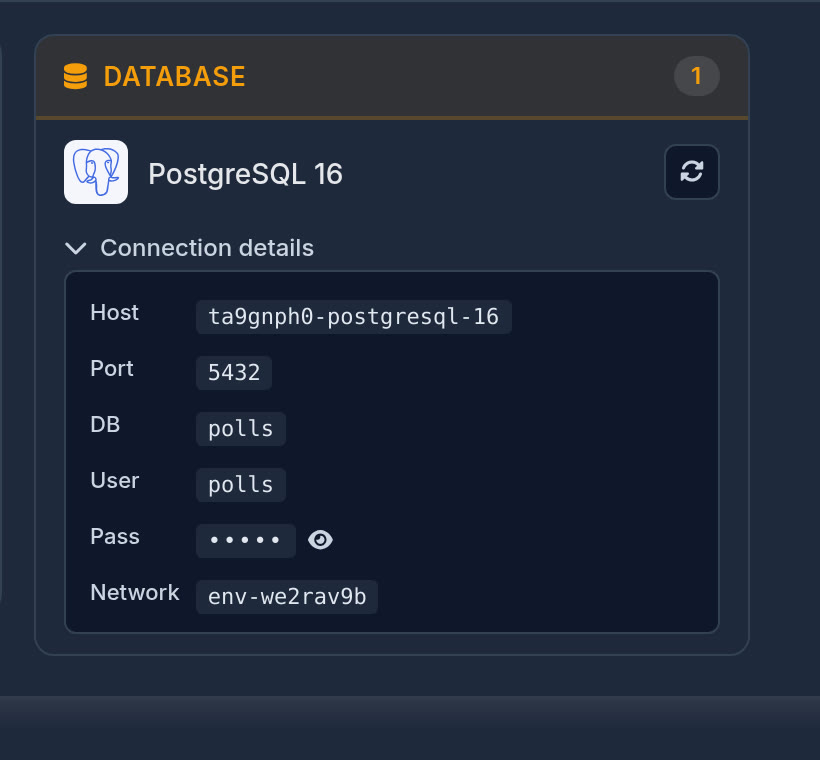
The values come from your app's environment, so no password sits in your code. The same details are under Connection details on the stack page (the password stays hidden until you click the eye):
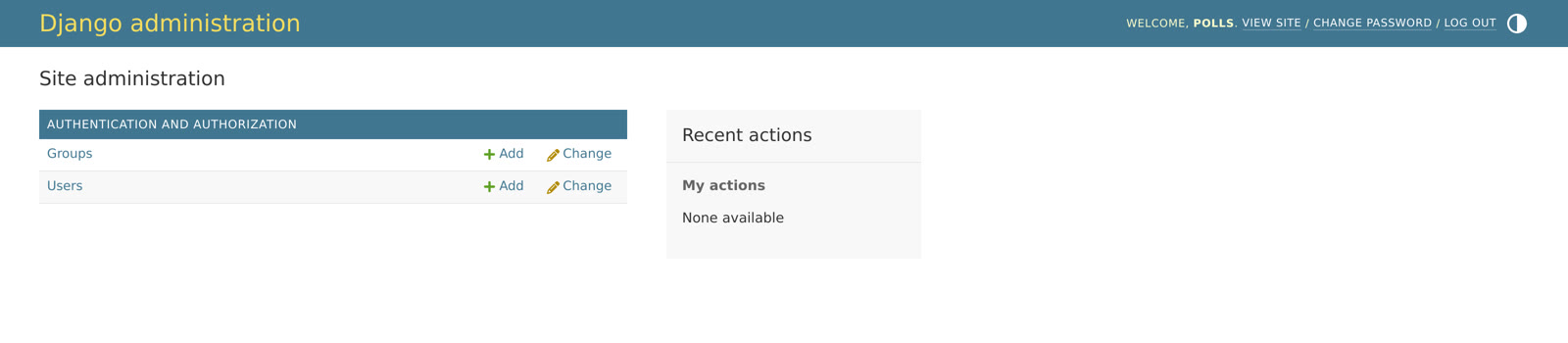
Open /admin/ on your app's address and sign in with the admin username and password you chose:
If you unticked the box
Your app starts on Django's default database and the PostgreSQL driver is already installed, so connecting later takes two steps: put the DATABASES block above into settings.py, then in the Web Terminal:
pixi run -e web-django python manage.py migrate
pixi run -e web-django python manage.py createsuperuser --noinput
createsuperuser --noinput uses the admin username, password and email you typed when you created the app. The app reloads by itself when settings.py changes; if a typo stops it, fix the file and press Restart on the stack page.
5. Bring your own code
On the stack page, Django's card has No repository → Connect: paste your repository's https address (GitHub, GitLab, Bitbucket or any other git host), pick the branch, and add an access token if it is private. It is cloned into the app and the app restarts on it; Pull brings in new commits later. You can also paste the repository when you create the app, under Source code.
Uppcoder leaves your own code as it is, so give your project the same two settings as above (the DATABASES block and the CSRF_TRUSTED_ORIGINS line; the variables are there for your app too), list psycopg in its dependencies, and run migrate once in the Web Terminal.
6. Share it
When you want other people to see it, switch Private to Public at the top of the stack page. It changes at once, with no restart, and anyone with the link can open your app. VS Code, the terminal and your files always stay behind your login.
Prefer your own editor? The stack page also shows how to connect over SSH, from VS Code Remote, Cursor, JetBrains Gateway or Zed.
Uppcoder runs Django and many other frameworks (FastAPI, py4web, Node, React, Vue, Next.js, Laravel, Rails, WordPress and more) the same way: try it on the free plan. Disclosure: I work on Uppcoder.
About the author
- I work on Uppcoder (portal.uppcoder.com), cloud dev environments where you pick your stack and code in VS Code in the browser. I write up the setups we test step by step: Django, PostgreSQL and more.
Comments
Join the discussionNo comments yet. Be the first to comment.